
- Please select the card you wish to join
-
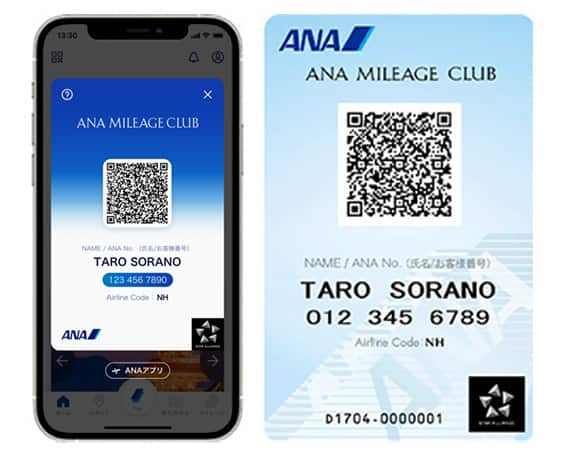
Get your digital card immediately
No enrollment or annual fees
ANA Mileage Club Card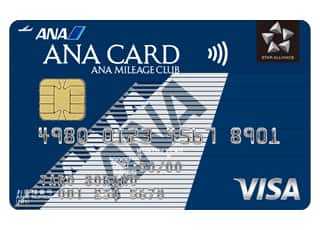
Earn more miles for your money
With credit function
ANA Card
Flow of Procedures to Change (Transfer) to ANA Flights (PC page)
Please refer to the procedures below when changing (transferring) to an ANA flight.
This page shows the procedures when using a PC. For the procedures when using a smartphone, please see here.
STEP1
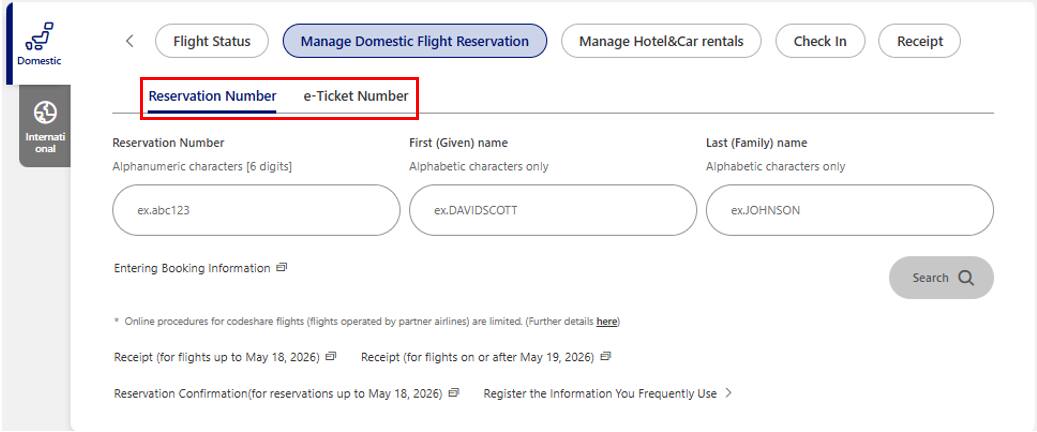
Within a Japan domestic flight, select Reservation Number or e-Ticket Number under Japan Domestic Reservation Confirmation to search for the reservation of the transfer flight.
-
*
To confirm your reservation, first enter your reservation number (not including travel products) or log in to the ANA website and then complete the process.
STEP2

Select Change Reservation from Menu at the top of the Reservation Summary Confirmation screen, or select Change Reservation at the right of the Reservation Summary Confirmation screen.
STEP3

Check the Select what you wish to Change checkbox for the itinerary you want to change and select the Next button.
STEP4

The search criteria screen will be displayed on the right.Select any criteria you want to change and then click the Search button.
STEP5

The Seat Availability Result screen will be displayed. Please select a transfer destination from the flights that have seats available.
-
*
Flights can be changed to a date earlier than the departure date, or a date up to 30 days after the departure date of the reserved flight (excludes some travel products).
STEP6

Please check that your selected flight is displayed and then click Next.
STEP7

The Fare Difference Adjustment screen will be displayed. (As it is a flight transfer, a fare difference will not be incurred.) After reviewing the information before and after the change, check the "I have read and agreed to the information provided herein." checkbox and select Next.
STEP8

A screen for confirming the change procedure will be displayed. Click the Confirm button.
STEP9

The flight change (transfer) is complete.
Related Tags
Related Pages






Member Login
Information for Members Logging In
- Before proceeding to log in, please be sure to read and accept the section on the purpose of using personal information in the ANA Privacy Policy.
- Points to note when using your AMC account.
Auto-Login with Cookies
- However, you will need to re-enter your password as a form of verification when making reservations, requesting awards, registering/revising personal information, and using other members-only functions.
-
The confirmation screen will reappear after closing all browser windows even if you checked "Do not show this screen again."
Entry of One-Time Password
If you have not received your one-time password
If your one-time password does not come through, please check your settings for receiving it and then re-send it.
If you do not do anything on the screen for a certain amount of time, you will have to request another one-time password.
Select your desired destination email address.
Do you really want to log out?
- If you click "Log Out," you will be logged out even if you have selected "Save Login Status."
- Close all open browser windows if you want to quit your session without logging out.
-
The confirmation screen will reappear after closing all browser windows even if you checked "Do not show this screen again."

ANA Biz is a business travel arrangement service.

-
MILES
-
ANA SKY COINS
-
Premium Point / Point on ANA /
-
Reservations
-
MILES
-
MILES
-
Login
-
Support